Surprising fact: more than 70% of creative professionals rely on shared step-by-step guides to learn new techniques fast, and that community power fuels striking work in days, not months.
I invite you into my studio with a clear promise: practical lessons that spark ideas and deliver visible results the same day. I focus on creative confidence, not just technique.
In each lesson I show why I chose Photoshop as my go-to design environment and how the global network of artists speeds learning. You’ll follow modular, bite-sized sessions that fit real life and the time you have.
I set honest expectations for the painting and final image, mapping steps from first brushstroke to polished piece. I cover a range of styles—from painterly fantasy to cinematic compositions—so you can pick the path that suits your goals.
Visit my Mystic Palette Art Gallery to see visual benchmarks, and contact me when you want custom guidance or a bespoke commission.
Key Takeaways
- Community guides speed skill growth and yield fast results.
- Lessons are modular to fit busy schedules and real life.
- Expect practical, step-by-step painting to finished image outcomes.
- Styles range widely so you can follow the path that fits you.
- Warm, expressive teaching blends tips with creative prompts.
- Visit Mystic Palette Art Gallery and contact me for custom work.
Why I Created These Photoshop Digital Art Tutorials Now
My goal is simple: give you a straight path from a rough sketch to a polished painting you can use right away.
I saw too many great ideas stall between concept and finish. I made this series to fix that with a clear, repeatable process.
What you’ll learn today (and how to use it right away)
Quick wins: short video chapters teach one technique at a time so you can apply it to an image the same day.

I share the studio habits that made my work consistent—file organization, brush choices, and a focused approach that keeps ideas moving.
Industry pros like Dave Neale show full workflows in long-form lessons: Wacom settings, Smart Objects, multi-part Actions, and handy shortcuts. I distill those methods into bite-sized tutorial segments with downloadable brushes, actions, and project files (6h 5m, HD 1920×1080).
- Move from rough concept to finished painting with a concise workflow.
- Learn specific steps to avoid common pitfalls and build skills faster.
- Use short videos to practice and then apply techniques to current work.
Explore the Mystic Palette Art Gallery to see outcomes these lessons unlock. For custom requests or inquiries, please contact us.
Setting Up for Success: My Photoshop Workspace, Tools, and Brushes
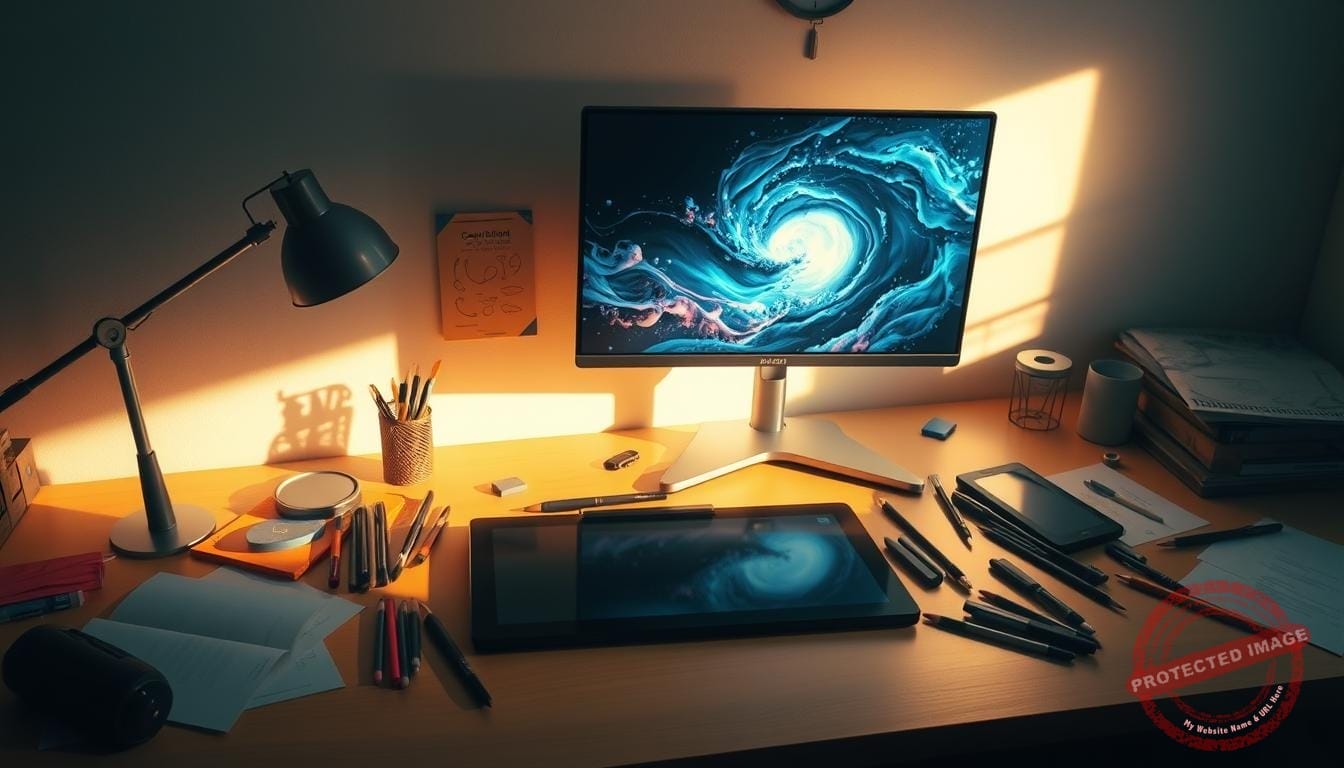
I arrange my workspace so every stroke and shortcut feels effortless from the first mark. A calm desk, calibrated display, and tuned pen curves on a Wacom keep my focus sharp and my strokes natural.
Wacom settings and shortcuts make the difference between fighting the interface and staying in flow. I map custom hotkeys for selection refinements and transforms. Dave Neale’s methods inspired my multi-part Actions and Smart Object habits.
Custom brushes and organization
I build named brush sets and specialty brushes, using scanned drawings and photographic texture when needed. Aaron Blaise taught me to keep clear categories and tags so I find the right grain or edge fast.
Smart Objects, layers, and adjustments I rely on
I lean on Smart Objects to preserve editability and nest folders for complex warps. My go-to adjustment layers are Curves, Gradient Map, and Color Lookup paired with masks for non-destructive shaping.
- I version files with iterative saves and small preview exports for easy feedback.
- Layer styles add quick depth—subtle bevels and soft shadows that never overwork the image.
“Good setup removes friction and keeps ideas moving toward a polished result.”

If you want help tailoring this toolkit to your machine and workflow, contact me for a quick consult—I’m happy to help you dial it in fast.
My How-To Method: Learn, Practice, and Apply With Purpose
I teach a paced, practical process that turns a rough idea into a strong image without burnout.
I guide you from loose sketch to final painting with clear checkpoints. Each pass focuses on one goal: composition, value, color, or edge control.
From sketch to final: a repeatable process for any image
Stepwise work keeps decisions simple. I block values, refine edges, and add detail in controlled stages so the work never feels overwhelming.
Following along with files, actions, and reference images
You’ll practice on downloadable files and actions used in a full character paint-through by Dave Neale. Aaron Blaise’s scanning and brush tips show how to merge pencil lines with painterly blending.
- I use short video segments to teach one skill at a time and apply it immediately to projects.
- I assess checkpoints with simple metrics: readability, balance, and rhythm.
- Prompts and pivot tips keep creativity moving without derailing the plan.
| Stage | Focus | Deliverable |
|---|---|---|
| Sketch | Composition & pose | Thumbnail + reference board |
| Block-in | Values & silhouette | Value pass file |
| Refine | Edges, light, color | Polished image export |
For a guided character paint-through and the exact files I use, follow this character paint-through. Visit our Mystic Palette Art Gallery and contact me for a tailored practice plan.
Photoshop Digital Art Tutorials: Curated Paths by Style and Goal
I organize clear learning tracks so you can pick a creative path and finish a strong image.
I present four focused lanes that match the outcome you want: painting, surreal composition, poster design, and 3D-inspired workflows. Each path includes step-by-step checkpoints and practice files so progress feels steady and measurable.


Digital painting: fantasy scenes, characters, and photoreal objects
I map paths from quick character studies to full environment pieces. You’ll learn to move from block-in to finish so each session yields a usable artwork.
Photo manipulation & composition: surreal worlds, cinematic moods
Explore world-building edits—steampunk insects, flooded cities, or aerial panoramas. The goal is believable blends and strong mood in every image.
Poster and typography design: retro, comic, and metallic effects
Recreate iconic poster looks with texture, shading, and type treatments inspired by big franchise styles. These lessons teach design principles as much as effects.
3D-inspired workflows: depth, renders, and text effects in Photoshop
Workflows range from Photoshop-only 3D panel tricks to hybrid pipelines that use external renders for metallic skulls or complex panels.
- Paths progress from simple to advanced with clear checkpoints for beginners and pros.
- Exercises include glowing light effects, underwater vector looks, and steampunk assemblages.
- If you want a tailored sequence, contact me and I’ll suggest the right tools and timing.
“Choose a path that matches the image you want and practice the exercises that build the right skills.”
For a hands-on example, follow the character paint-through and visit our Mystic Palette Art Gallery to see outcomes. For custom requests or inquiries, please contact us.
Core Techniques I Teach and Use Every Day
I focus on a handful of core moves that lift a sketch into a strong, finished image every time. These are the practical checks and small tools I return to in every lesson.
Sketching, scanned drawings, and clean line work
I show how to bring paper sketches into Photoshop cleanly and keep the energy of the line. Scanning, levels fixes, and a simple cleanup pass preserve gesture before you paint.
Layering strategies: blend modes, masks, and non-destructive edits
Layer workflows keep edits reversible. I teach clipping masks, safe color passes, and blend mode checks so you can revise without losing progress.
Light, shadow, and atmospheric perspective
Light logic is simple: check cast shadows, occlusion, and bounce. Then add atmosphere to push depth so foreground and background read clearly.
Mixer Brush, Smudge, and texture overlays
I use the Mixer Brush and Smudge for painterly transitions, with photographic texture added as tasteful overlays. This adds tooth without muddying values.
Color control: gradients, Color Dodge, and tonal adjustments
Use gradients and Color Dodge sparingly to suggest glow and volume. Pair them with global tonal layers so the image stays readable at a glance.
- I preserve clean line work while preparing sketches for paint.
- Layer masks and blend modes give non-destructive control.
- Simple light checks and atmosphere make scenes believable.
- Painterly passes and measured texture add character.
- Color tools shape glow and form without overpowering values.
“These techniques let you move from concept to polished painting with confidence.”
Visit our Mystic Palette Art Gallery. For custom requests or inquiries, please contact us.
Project Roadmap: From Beginner Wins to Advanced Showpieces
I map clear, time-friendly projects so you learn by finishing, not by watching alone.
Beginner-friendly starts focus on glowing light painting effects and retro illustrations. These quick projects give beginners satisfying results and teach core skills in a single session.
Intermediate builds advance to photoreal props—electric guitars, vintage TVs—plus vehicles and creature parts. You’ll refine material reads, edge control, and layering tools that lift an image into believable work.
Advanced scenes tackle cinematic composites and surreal environments: aerial panoramas, flooded city manipulations, and staged showpieces. Planning, references, and disciplined layers make these projects portfolio-ready.
- I tie each stage to a concrete project so skills grow through doing, not just video.
- Scope projects into manageable parts to fit a busy week.
- Pacing guidance and checkpoints help you know when a piece is ready for portfolio review.
“Work in staged parts—short passes, clear goals, and repeatable checks—so complex scenes become achievable.”
| Level | Focus | Outcome |
|---|---|---|
| Beginner | Glow effects, retro illustration | Finished small artwork |
| Intermediate | Props, vehicles, creature parts | Portfolio-ready images |
| Advanced | Cinematic composites, surreal scenes | Showpiece artwork |
Preview results in the Mystic Palette Art Gallery. For custom roadmaps or inquiries, please contact us.
Pro Workflow Tips to Save Time and Elevate Results
I streamline complex routines into single clicks so you keep momentum on every image.
Small automations and clear habits free mental space for creative choices. I build multi-part Actions that combine prep, cleanup, and export into one step. This is the fastest way to get repeatable results for client work.
Multi-part Actions, obscure shortcuts, and efficient transforms
Smart Objects let you transform nested groups without losing layered detail. I convert groups when I expect heavy warps or rescaling.
- I keep a short list of obscure shortcuts for selection refining, brush flow, and zoom navigation.
- Efficient transform habits: use Free Transform with reference guides and temporary guides to maintain proportions.
- Targeted adjustment passes fix values fast—use Curves and a masked Color Balance for quick before/after checks.
- Batch exports and consistent naming keep thumbnails and finals uniform for review.
“Automate routine steps so your tools serve the idea, not the other way around.”
| Technique | When to use | Benefit |
|---|---|---|
| Multi-part Actions | File prep, cleanup, export | One-click consistency and faster delivery |
| Smart Objects | Scaling, warping, nesting layers | Preserves editability and detail |
| Targeted Adjustments | Value and color fixes | Minutes instead of hours for fixes |
If you want automation tailored to your workflow, contact me and I’ll suggest a set of actions and tools that fit your projects.
Conclusion
Make progress today by focusing on one technique, one file, and one clear goal. Small wins add up fast when you practice with purpose.
Remember the essentials: clean layers, meaningful light, and a confident brush approach. A lean toolkit—few reliable brushes, smart layer styles, and targeted adjustments—speeds better results.
Use short video refreshers when you need them and revisit a process if your eye asks for it. Explore the Mystic Palette Art Gallery for variety and inspiration from artists around the world.
When you want tailored guidance, contact me. Whether you’re an emerging artist or part of a team of digital artists, I’ll help you refine techniques and plan projects so your work keeps moving forward.
FAQ
What will I learn in these Photoshop digital art tutorials and how can I use it right away?
I design each lesson to teach practical steps you can use immediately. You’ll learn sketching and clean line work, building believable light and atmospheric depth, and using layer strategies like masks and blend modes. I also show how to organize brush presets and use adjustment layers so you can apply the techniques directly to your own images or ongoing projects.
Why did I create these lessons now?
I saw a need for clear, hands-on guidance that bridges concept and final image. My goal is to help artists move from practice to purpose faster — whether you want to craft cinematic scenes, character studies, or poster designs. The lessons focus on workflows that save time and improve results.
How should I set up my workspace and Wacom for the best results?
I recommend a distraction-free layout with frequently used panels within reach, a tablet mapping that feels natural, and a few essential shortcuts for brush size and undo. I share my Wacom pressure curve, tilt settings, and time-saving hotkeys so you can replicate a comfortable setup quickly.
What brushes and brush organization do you recommend?
I use a mix of custom and specialty brushes: texture scatter, soft round for blending, and bristle-style brushes for painterly strokes. I organize presets by purpose — sketch, paint, texture — and I show how to import and save sets so you can switch tools between projects effortlessly.
Which layer tricks and Smart Object habits should I adopt?
Use Smart Objects to preserve edits and enable non-destructive scaling. Rely on grouped layer styles, adjustment layers for global color control, and clipping masks for targeted changes. These habits keep files flexible and allow you to revisit decisions without losing quality.
What is your step-by-step process from sketch to final image?
I start with a loose sketch, block in major shapes and values, refine line work, and then build color and light in separate passes. Textures and small details come last. This repeatable process helps me maintain clarity and keeps each stage reversible.
Do you provide project files, actions, or reference images to follow along?
Yes — many lessons include sample files, actions, and curated reference images. I encourage you to use them for practice and to compare techniques. These resources make it easier to replicate steps and speed up your learning curve.
What styles and goals do your curated lesson paths cover?
I offer focused paths for fantasy painting, character work, photomontage and composition, poster and typography effects, and 3D-inspired workflows that simulate depth and render-like finishes. Each path targets specific skills so you can pick what aligns with your goals.
Which core techniques should I master first?
Start with sketching and line control, then learn layering strategies like masks and blend modes. Practice light and shadow to create depth, and explore mixer and smudge tools for painterly results. Color control — using gradients, Color Dodge, and tonal adjustments — ties everything together.
How do you recommend progressing from beginner projects to advanced pieces?
Begin with small wins: glowing effects, simple retro illustrations, or basic photo blends. Move to intermediate builds like realistic props and creatures, then tackle advanced cinematic composites and surreal environments. Each stage builds skills and confidence.
What pro workflow tips save the most time?
Use multi-part actions for repetitive tasks, learn obscure shortcuts for transforms and selections, and rely on Smart Objects and linked files to manage complex scenes. Batch processing and consistent file naming also speed up delivery for client work.
Can these lessons help with poster design and typography effects?
Absolutely. I cover retro, comic, and metallic text treatments, layout composition, and how to blend type into imagery using layer styles and masking. These techniques work well for personal projects and professional commissions alike.
Will I learn how to create photoreal objects and believable renders?
Yes — I teach approaches for photoreal props and surfaces, using reference, texture overlays, and lighting tricks to simulate real-world materials. I also show how to combine 3D renders with painted elements for more convincing results.
Are these lessons suitable for beginners with limited equipment?
Definitely. I include beginner-friendly starts and show how to adapt techniques with a mouse or an entry-level tablet. The core ideas — composition, value, and light — translate across tools, and I suggest low-cost brushes and presets to get you going.
How do you approach color control and final adjustments?
I use targeted adjustments, selective color, and gradient maps to harmonize scenes. Layered Color Dodge and subtle vignettes bring focus. I teach how to make these tweaks non-destructively so you can refine tones without harming earlier work.
Do you cover texture, mixed media, and filmic looks?
Yes — I explore texture overlays, scanned materials, and film-inspired grading to give work a tactile, cinematic feel. I show blending modes and dodging techniques to combine scanned textures with painted layers for rich, nuanced surfaces.
How can I adapt these lessons to my personal style?
I encourage experimentation: mix brushes, change palettes, and reinterpret exercises with your references. I provide a variety of projects so you can practice specific elements and then remix them into your unique voice and approach.