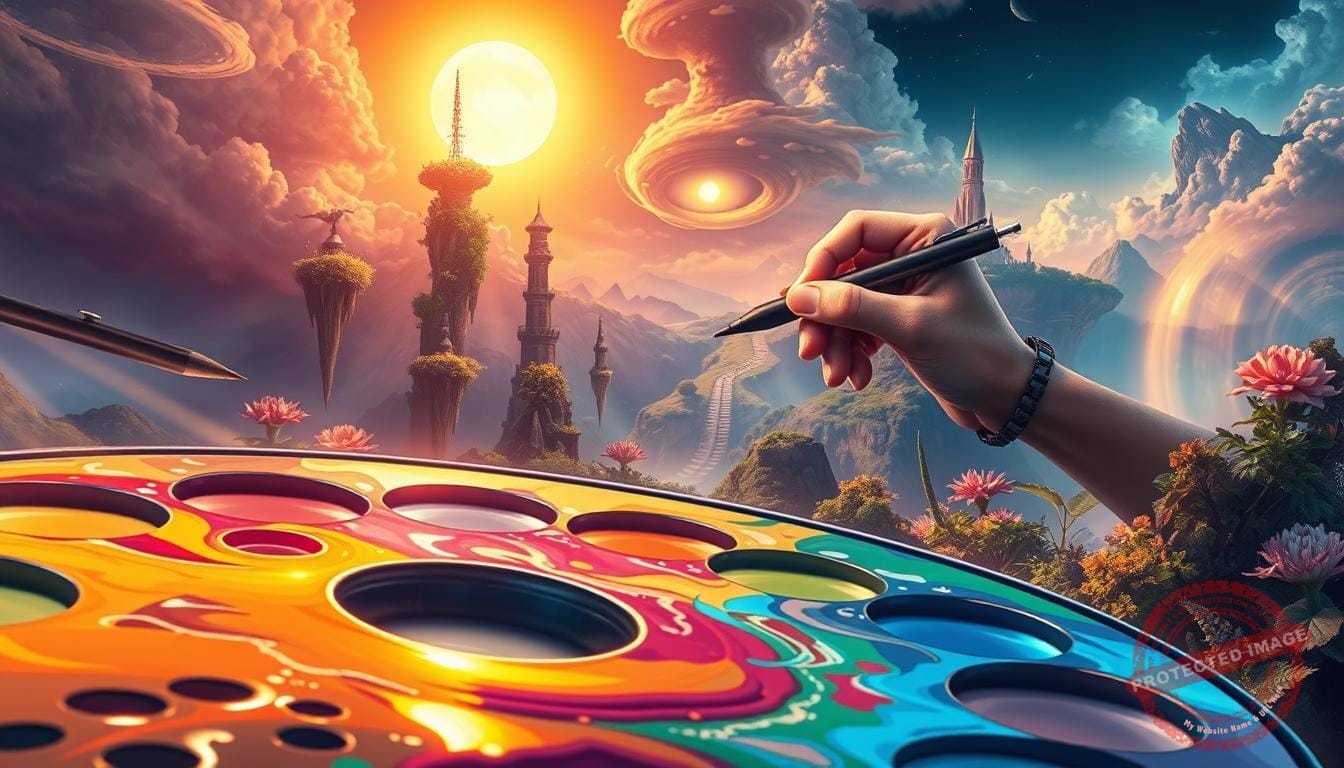
Did you know that you can begin making striking work with as little as 4 GB of RAM and about $100 in starter tools? That fact surprised me when I first switched from paper to screen, and it changed everything.
I fell in love with creating on a tablet because it felt like play. My sketches moved from rough marks to finished pieces without paint stains or piles of paper. That freedom opened a whole new world for my creativity.
In this guide I share the simple setup and steps I use every day: affordable hardware options, straightforward software choices, and a clear illustration workflow you can follow. I’ll show realistic gear paths so you can start small and grow your kit as your skills do.
Visit our Mystic Palette Art Gallery to see finished pieces that grew from the same process. When you’re ready, contact me for custom requests—connecting with other artists is one of my favorite parts of this journey.
Key Takeaways
- Start with modest gear: 4 GB RAM can work, but 8 GB+ is better.
- Entry costs can be low if you mix freeware with a small pen tablet.
- Pen tablets like Wacom offer smooth lines on non-touch computers.
- The guide gives a beginner-friendly roadmap from sketch to finished piece.
- Explore the Mystic Palette Art Gallery for real examples and contact me for custom work.
Welcome to my world of digital art: how I began and what you’ll learn in this beginner’s guide
The moment I learned “undo” changed how freely I experimented with ideas. That simple tool sped my learning and made every attempt feel safe rather than final.
I started with free trials and freeware like Krita and GIMP. Small experiments let me test a few interfaces and find one that fit my hand. Most paid apps offer trials, so you can try before you buy.
Here’s what this guide will cover for beginners:
- Devices and software choices that match different budgets.
- A clear process you can repeat: rough sketch → linework → flats → Multiply shadows → Overlay highlights → blend → export.
- Practical tips for steady progress and short, daily drawing sessions.
- Ideas for beginners-friendly courses if you prefer guided learning.

My way of learning was simple: test features on tiny projects, note what helps, and refine the process. By the end, you’ll have a grounded path to start drawing with confidence and an enjoyable experience that keeps you curious.
Introduction to digital art creation
I began by treating the screen as a fresh studio where mistakes vanish with a single keystroke. That shift made it clear what counts: ideas, practice, and curiosity—no expensive supplies required.
What this medium is (and how it differs from traditional media)
Digital art covers paintings, illustration, 3D work, pixel pieces, animation, and photo edits made, enhanced, or shown on screens. Unlike paper and paint, materials live as files and layers. The creative heart stays the same; the materials change.
Why beginners thrive here
Undo, fast iteration, and low-cost apps let beginners experiment without fear. A basic computer you already own can be enough to start. I recommend 8 GB RAM for smoother layers and larger files.
“One steady habit—daily sketching—beats sporadic marathons for real progress.”
- I define the medium practically: any work made or shown on screens.
- Styles range widely, so you can evolve your own style with little up front cost.
- Tools amplify ideas; the artist remains the creator.
Choosing my first setup: devices, tablets, pens, and displays
My first setup came from a simple idea: use what I already owned and add only what unlocked better lines. That meant drawing on my existing computer, then trying a pen tablet for smoother strokes.

Computer, tablet, or smartphone: what I actually needed
I found you can start on a laptop or desktop you already have. Aim for 8 GB RAM if you can; 4 GB can work for tiny files. Phones with pressure-capable stylus support (like some Samsung models) also work well if portability matters.
Pen tablets vs. pen displays: pressure sensitivity, tilt, and learning curve
Non-touch computers pair nicely with pen tablets (Wacom is popular). They give precise lines without a screen. Pen displays add a direct feel but raise cost and learning time.
Memory, monitors, and screen size: what matters
Large monitors (20″+) reduce eye strain and help color work. Watch response time, pressure levels, and shortcut keys when choosing tools.
Budget snapshots: starter gear and long-term options
- Computer: $450–$2,800
- Pen tablet: $100–$2,000+
- Stylus: $99–$129
- Software: free–$300; scanner: from $100
“Start small with tools that feel good in your hands; upgrade when a clear limit slows your work.”
Quick picks I tested: XP-Pen Deco MW (8,192 levels, Bluetooth) and Artist 12 3rd (16K pressure, etched glass). Galaxy Book5 Pro 360 bundles a 4,096-level S Pen, 120 Hz OLED, and Clip Studio trials—an attractive all-in-one option for artists on a sensible budget.
Software I tried and why I stuck with certain apps
Finding software that feels like an extension of your hand makes a huge difference. I picked apps that kept my flow, gave clean brushes, and stayed stable during longer sessions.
What I value: stability, brush feel, and a layout that lets me work fast without hunting through menus. I test each app with my stylus and a short sketch session before deciding.

Beginner-friendly choices

Krita, GIMP, Medibang, and FireAlpaca are great low-cost options. They let new creators start without a subscription and learn core workflows quickly.
Pro picks I kept using
Adobe Photoshop offers deep editing tools. Clip Studio Paint stands out for comics, panels, rulers, and an asset library that saved me time.
Tablet favorites
Procreate on iPad is fast, intuitive, and affordable as a one-time purchase. Clip Studio on iPad and Galaxy works well for longer projects and comic layouts.
| App | Cost | Best for | Key strength |
|---|---|---|---|
| Krita | Free | Painting & illustration | Brush engine, stability |
| Clip Studio Paint | One-time / subscription trial | Comics, panels | Perspective rulers & asset library |
| Procreate | One-time (~$9.99) | Sketching & finished pieces | Speed, animation assist |
| Photoshop | Subscription | Advanced edits | Layer control, photo tools |
“Try a free trial with your own stylus—feel the pressure and brush texture before you buy.”
Match apps to what you draw most, how portable you need to be, and how much time you plan to spend learning. Short courses are available for each app and help artists get practical skills fast.
My starter workflow: from sketch to polished digital illustration
I follow a simple, repeatable workflow that turns a rough idea on the canvas into a finished illustration. This process keeps files tidy and revisions painless.
I begin with a background layer, then add a new layer for a rough sketch. I put clean linework on its own layer above that, and drop flats beneath the lines to lock in color quickly.
Layering essentials: rough sketch, clean linework, and flats
Keep each major part on its own layer. Label layers clearly and avoid merging until you must. That habit speeds edits and client feedback.
Values and depth: shadows (Multiply) and highlights (Overlay)
I add shadows on Multiply layers and pick colored tones, never pure black. Highlights go on Overlay with gentle strokes. This keeps the palette lively and the depth believable.
Brushes and blending: texture, opacity, and restraint
I use two main brushes: one inker and one soft blender. Blend sparingly at low opacity so the brush texture remains visible and the paint still feels fresh.
Signing, exporting, and safe saving habits
- Save incremental versions and keep a layered master.
- Sign at the end, export a web-size and a high-res file.
- Use small checks—flip the canvas or zoom out—to catch mistakes fast.
“A clear process makes digital drawing and illustrations repeatable and joyful.”
Learning the fundamentals first: color, light, form, and perspective
I start most studies by blocking simple shapes and asking how light will rest on them. This keeps practice focused and helps me see structure before I add detail.
I keep layers few and the canvas clean while I work value scales. That habit trains my eye so each brush stroke reads as a choice, not a guess.
Building confidence with structure, value, and simple shapes
I sketch spheres, cubes, and cylinders and test light across them. Quick value scales teach how form reads at a glance.
I use one or two brushes and study edges—soft vs. hard—so volume feels believable. Small, repeated drills improve my drawing and make the process less intimidating.
“Practice simple shapes, then build complexity. Short focused drills shorten the path to strong work.”
Palette choices and color harmony for beginners
I prefer limited palettes at first: two local colors plus a shadow and a highlight. That keeps harmony clear and trains me in relationships of hue and saturation.
Paint studies from life or photos help translate observation into design choices. I take notes and build a small playbook of palettes that suit my emerging style.
When I need guided structure, I sign up for short courses that compress years of trial-and-error into focused lessons. If you want a starting point, learn the fundamentals with guided exercises.
| Exercise | Time | Goal |
|---|---|---|
| Value scale studies | 10–20 min | Read light and shadow |
| Shape blocking on canvas | 15–30 min | Structure and proportion |
| Limited palette painting | 20–40 min | Color harmony practice |
| Perspective drills | 10–15 min | Ground figures in space |
Over time, these basics—layers, brush settings, color harmony, structure, and perspective—become habits. As my skills grow, my style appears naturally and confidently.
Tools that made drawing faster: shortcuts, hotkeys, and custom brushes
I found that mapping frequent actions to natural hand positions made my workflow sing. Small ergonomic changes cut wrist travel and kept my focus on the canvas.
Setting up efficient workflows and automation
Shortcuts save time when they match your muscle memory. I map brush, eraser, and color picker where my fingers rest. This turns repeated tasks into reflexes and speeds drawing sessions.
Automation helps too. I build action scripts for layer setup and export presets. Plugins and macros handle repetitive cleanup so I can stay creative.
- I keep custom brushes few and named clearly so my toolkit stays lean and predictable.
- I try one option per session—test a hotkey or a script, then keep what sticks.
- Compact keypads or on-screen hotkeys keep my hand steady and reduce fatigue.
- I document every tool choice so I can rebuild my workspace after an update or on a new machine.
“Minimize friction and protect creative energy—let ideas move straight to the canvas.”
| Speed tactic | What I map | Benefit | Example |
|---|---|---|---|
| Hotkeys | Brush, Eraser, Pick | Faster strokes, fewer menu clicks | Ctrl+B (brush), X (swap) |
| Actions / Scripts | Layer setup, exports | Repeatable file prep | Single-click export preset |
| Custom brushes | Named presets | Consistent look, less tweaking | Inker, soft blender |
| Hardware | Keypad / pen buttons | Ergonomic comfort | Elgato Stream Deck or mini keypad |
From traditional to digital: how I adapted my habits without losing my style
I kept my sketchbook habit alive by scanning loose paper drawings and letting them guide my screen work.
Starting on paper preserved the heart of each idea. I trace thoughtfully, keeping the spontaneity of pencil marks instead of over-cleaning them away.
I use stabilizers and textured brushes that mimic ink and graphite. Those small adjustments made the stylus feel like my favorite tools.
Short daily studies eased the learning curve. Quick exercises rebuilt my confidence and let me play without pressure.
My process uses layers for non-destructive edits. That freedom lets me iterate compositions fast, then bring the best ideas back onto paper when I want.
- I protect my signature look with a consistent shape language and clear value structure.
- I keep edge work intentional so pieces read the same across mediums.
- I treat the screen as another way to extend my practice, not replace it.
“Medium shifts expand your toolbox — they don’t force you to abandon what matters.”
Budget and upgrade paths in the United States
I break down what entry-level buys look like, and where upgrades truly make a difference. Knowing realistic ranges helps you plan without panic and keeps practice central.
Entry-level to pro: realistic cost ranges for devices, stylus, and apps
Here are common US ranges I used when I upgraded.
- Computer: $450–$2,800
- Pen tablets / drawing tablets: $100–$2,000+
- Stylus / pen: $99–$129
- Software: free–$300 (many offer trials; try Clip Studio)
- Scanner: from $100
When to upgrade: signs your current setup is limiting you
Upgrade when tools slow your process, not for trends.
- Brush lag or poor pressure response affecting line control and levels.
- Files strain RAM or storage during normal drawing sessions.
- Color accuracy matters and your monitor or tablet display feels off.
- You need a larger screen—aim for 20″ or more when possible for less eye strain.
Practical rule: add hardware when it clearly raises your speed, comfort, or final results—not merely because it’s newer.
Explore Mystic Palette Art Gallery and connect with me
Step into the Mystic Palette Art Gallery and let each piece speak for the choices behind it. I invite you to browse finished work that shows how sketches evolve into lively illustrations and mood studies.
Visit our Mystic Palette Art Gallery
You’ll find pieces that span playful scenes, atmospheric landscapes, and quiet portraits. Each piece reflects my experience and growth over time.
Look for process notes that share why I picked a palette, what brushes I used, and how a tablet helped shape the final marks.
For custom requests or inquiries, please contact me
If a piece resonates, I can discuss prints, licensing, or a tailored commission. Tell me your vision and timeline and I’ll outline scope, sketches, and milestones so the process feels smooth.
- Prints & licensing: quick details and options on request.
- Commissions: clear steps from rough sketch to final file.
- Advice: tablet recommendations and short courses that fit your goals.
“Whether you’re an artist or a collector, your view completes the world of each piece.”
Conclusion
Let this guide be a steady map you return to when practice feels scattered. Start drawing with what you have, learn one step at a time, and let your voice grow naturally.
Keep devices, software, and a simple workflow handy. Use short, focused practice sessions; they add up and unlock a lot of progress without heavy pressure.
If you are shaping your style, trust that it emerges through consistent making and honest curiosity. Lean on these tips when you feel stuck; the journey itself is the work you are crafting.
I invite you to visit our Mystic Palette Art Gallery to see these ideas in action through finished illustrations. When you are ready, contact me for custom work or questions—supporting your creative path is a joy.
Thank you for sharing this time with me. May your next piece feel like a beautiful step on your way.
FAQ
What gear did I actually need when I first started making art on a computer?
I began with a modest laptop, a basic pen tablet, and a simple stylus. For me the essentials were a pressure-sensitive tablet, a reliable stylus, and a computer with enough RAM to run painting apps. Screen size and color accuracy helped comfort and confidence, but I learned most with inexpensive equipment before I upgraded.
Which device is best: computer, tablet, or smartphone?
I found a tablet or pen display ideal for drawing because it feels natural and fast. A laptop or desktop offers more power for heavy files and professional apps. Smartphones work for quick sketches and ideas, but I prefer larger screens for detailed illustration work.
How different is using a pen tablet versus a pen display?
A pen tablet forces you to look at the monitor while you draw, which took me some practice. A pen display feels closer to traditional drawing because you draw directly on the screen. Pen displays can be pricier, but they reduce the learning curve and improve precision for many artists.
What software should a beginner try first?
I recommend free or low-cost apps like Krita, Medibang, FireAlpaca, and GIMP to learn basics. They give powerful tools without subscription pressure. Once I wanted more features, I moved to Clip Studio Paint and sometimes Adobe Photoshop for specific workflows.
Can I use Procreate or Clip Studio on an iPad or Galaxy tablet?
Yes. Procreate and Clip Studio run well on iPad and some Galaxy tablets. I use these standalone apps when I want portability. They support layers, brushes, and export options, so you can produce professional illustrations on the go.
How should I structure my workflow from sketch to finished illustration?
My usual flow is: rough sketch, refined sketch, clean linework, flat colors, values and shadows, then highlights and texture. I keep each stage on separate layers, and I use layer modes like Multiply for shadows and Overlay for glow to speed up depth and color work.
What brushes and blending tips helped me most?
I favor a textured round brush for structure, a softer brush for blending, and a hard brush for crisp edges. Restraint matters: over-blending flattens work. Custom brushes and a light opacity for gradual blending made my pieces feel more organic.
How do I manage file saving and exports safely?
I save layered files in native formats (like .clip, .psd, or .kra) and export flattened copies in PNG or JPEG for sharing. I use cloud backups and versioned saves—save early, save often—to avoid losing progress and to keep editable layers for future tweaks.
What fundamentals should beginners focus on first?
I concentrated on value, form, and perspective before complex rendering. Simple shapes, clear light direction, and value studies made my work read better. Color harmony came next, once forms and values were solid.
How did keyboard shortcuts and custom brushes change my process?
Shortcuts and custom brushes dramatically accelerated my work. I mapped frequently used tools to quick keys and created brushes tailored to my textures. That saved time and kept me in the creative flow rather than hunting menus.
How do I keep my traditional style when moving into software?
I brought over my hand gestures, mark-making, and preferred palettes. I used textured brushes and scanned paper sketches to retain a tactile feel. The key for me was adapting tools, not abandoning the habits that made my art unique.
What are realistic budget ranges for a beginner in the United States?
For starters, expect –0 for entry-level tablets and
FAQ
What gear did I actually need when I first started making art on a computer?
I began with a modest laptop, a basic pen tablet, and a simple stylus. For me the essentials were a pressure-sensitive tablet, a reliable stylus, and a computer with enough RAM to run painting apps. Screen size and color accuracy helped comfort and confidence, but I learned most with inexpensive equipment before I upgraded.
Which device is best: computer, tablet, or smartphone?
I found a tablet or pen display ideal for drawing because it feels natural and fast. A laptop or desktop offers more power for heavy files and professional apps. Smartphones work for quick sketches and ideas, but I prefer larger screens for detailed illustration work.
How different is using a pen tablet versus a pen display?
A pen tablet forces you to look at the monitor while you draw, which took me some practice. A pen display feels closer to traditional drawing because you draw directly on the screen. Pen displays can be pricier, but they reduce the learning curve and improve precision for many artists.
What software should a beginner try first?
I recommend free or low-cost apps like Krita, Medibang, FireAlpaca, and GIMP to learn basics. They give powerful tools without subscription pressure. Once I wanted more features, I moved to Clip Studio Paint and sometimes Adobe Photoshop for specific workflows.
Can I use Procreate or Clip Studio on an iPad or Galaxy tablet?
Yes. Procreate and Clip Studio run well on iPad and some Galaxy tablets. I use these standalone apps when I want portability. They support layers, brushes, and export options, so you can produce professional illustrations on the go.
How should I structure my workflow from sketch to finished illustration?
My usual flow is: rough sketch, refined sketch, clean linework, flat colors, values and shadows, then highlights and texture. I keep each stage on separate layers, and I use layer modes like Multiply for shadows and Overlay for glow to speed up depth and color work.
What brushes and blending tips helped me most?
I favor a textured round brush for structure, a softer brush for blending, and a hard brush for crisp edges. Restraint matters: over-blending flattens work. Custom brushes and a light opacity for gradual blending made my pieces feel more organic.
How do I manage file saving and exports safely?
I save layered files in native formats (like .clip, .psd, or .kra) and export flattened copies in PNG or JPEG for sharing. I use cloud backups and versioned saves—save early, save often—to avoid losing progress and to keep editable layers for future tweaks.
What fundamentals should beginners focus on first?
I concentrated on value, form, and perspective before complex rendering. Simple shapes, clear light direction, and value studies made my work read better. Color harmony came next, once forms and values were solid.
How did keyboard shortcuts and custom brushes change my process?
Shortcuts and custom brushes dramatically accelerated my work. I mapped frequently used tools to quick keys and created brushes tailored to my textures. That saved time and kept me in the creative flow rather than hunting menus.
How do I keep my traditional style when moving into software?
I brought over my hand gestures, mark-making, and preferred palettes. I used textured brushes and scanned paper sketches to retain a tactile feel. The key for me was adapting tools, not abandoning the habits that made my art unique.
What are realistic budget ranges for a beginner in the United States?
For starters, expect $50–$300 for entry-level tablets and $0–$50 for free software. Mid-range setups with a pen display or a capable tablet can run $300–$1,000. Professional devices and software subscriptions push the cost higher, but you can learn a lot without a big initial investment.
How do I know when it’s time to upgrade my gear?
Upgrade when your current device limits canvas size, slows your workflow, or lacks pressure/tilt features you need. If lag, color inaccuracy, or file crashes become common, those are clear signs I needed more capable hardware.
Where can I show my work and request commissions from me?
I exhibit art in online galleries, social profiles, and community forums. For commissions, I recommend contacting artists directly through their official pages or portfolio platforms. Clear briefs, reference images, and agreed timelines make the process smooth for both of us.
– for free software. Mid-range setups with a pen display or a capable tablet can run 0–
FAQ
What gear did I actually need when I first started making art on a computer?
I began with a modest laptop, a basic pen tablet, and a simple stylus. For me the essentials were a pressure-sensitive tablet, a reliable stylus, and a computer with enough RAM to run painting apps. Screen size and color accuracy helped comfort and confidence, but I learned most with inexpensive equipment before I upgraded.
Which device is best: computer, tablet, or smartphone?
I found a tablet or pen display ideal for drawing because it feels natural and fast. A laptop or desktop offers more power for heavy files and professional apps. Smartphones work for quick sketches and ideas, but I prefer larger screens for detailed illustration work.
How different is using a pen tablet versus a pen display?
A pen tablet forces you to look at the monitor while you draw, which took me some practice. A pen display feels closer to traditional drawing because you draw directly on the screen. Pen displays can be pricier, but they reduce the learning curve and improve precision for many artists.
What software should a beginner try first?
I recommend free or low-cost apps like Krita, Medibang, FireAlpaca, and GIMP to learn basics. They give powerful tools without subscription pressure. Once I wanted more features, I moved to Clip Studio Paint and sometimes Adobe Photoshop for specific workflows.
Can I use Procreate or Clip Studio on an iPad or Galaxy tablet?
Yes. Procreate and Clip Studio run well on iPad and some Galaxy tablets. I use these standalone apps when I want portability. They support layers, brushes, and export options, so you can produce professional illustrations on the go.
How should I structure my workflow from sketch to finished illustration?
My usual flow is: rough sketch, refined sketch, clean linework, flat colors, values and shadows, then highlights and texture. I keep each stage on separate layers, and I use layer modes like Multiply for shadows and Overlay for glow to speed up depth and color work.
What brushes and blending tips helped me most?
I favor a textured round brush for structure, a softer brush for blending, and a hard brush for crisp edges. Restraint matters: over-blending flattens work. Custom brushes and a light opacity for gradual blending made my pieces feel more organic.
How do I manage file saving and exports safely?
I save layered files in native formats (like .clip, .psd, or .kra) and export flattened copies in PNG or JPEG for sharing. I use cloud backups and versioned saves—save early, save often—to avoid losing progress and to keep editable layers for future tweaks.
What fundamentals should beginners focus on first?
I concentrated on value, form, and perspective before complex rendering. Simple shapes, clear light direction, and value studies made my work read better. Color harmony came next, once forms and values were solid.
How did keyboard shortcuts and custom brushes change my process?
Shortcuts and custom brushes dramatically accelerated my work. I mapped frequently used tools to quick keys and created brushes tailored to my textures. That saved time and kept me in the creative flow rather than hunting menus.
How do I keep my traditional style when moving into software?
I brought over my hand gestures, mark-making, and preferred palettes. I used textured brushes and scanned paper sketches to retain a tactile feel. The key for me was adapting tools, not abandoning the habits that made my art unique.
What are realistic budget ranges for a beginner in the United States?
For starters, expect $50–$300 for entry-level tablets and $0–$50 for free software. Mid-range setups with a pen display or a capable tablet can run $300–$1,000. Professional devices and software subscriptions push the cost higher, but you can learn a lot without a big initial investment.
How do I know when it’s time to upgrade my gear?
Upgrade when your current device limits canvas size, slows your workflow, or lacks pressure/tilt features you need. If lag, color inaccuracy, or file crashes become common, those are clear signs I needed more capable hardware.
Where can I show my work and request commissions from me?
I exhibit art in online galleries, social profiles, and community forums. For commissions, I recommend contacting artists directly through their official pages or portfolio platforms. Clear briefs, reference images, and agreed timelines make the process smooth for both of us.
,000. Professional devices and software subscriptions push the cost higher, but you can learn a lot without a big initial investment.
How do I know when it’s time to upgrade my gear?
Upgrade when your current device limits canvas size, slows your workflow, or lacks pressure/tilt features you need. If lag, color inaccuracy, or file crashes become common, those are clear signs I needed more capable hardware.
Where can I show my work and request commissions from me?
I exhibit art in online galleries, social profiles, and community forums. For commissions, I recommend contacting artists directly through their official pages or portfolio platforms. Clear briefs, reference images, and agreed timelines make the process smooth for both of us.