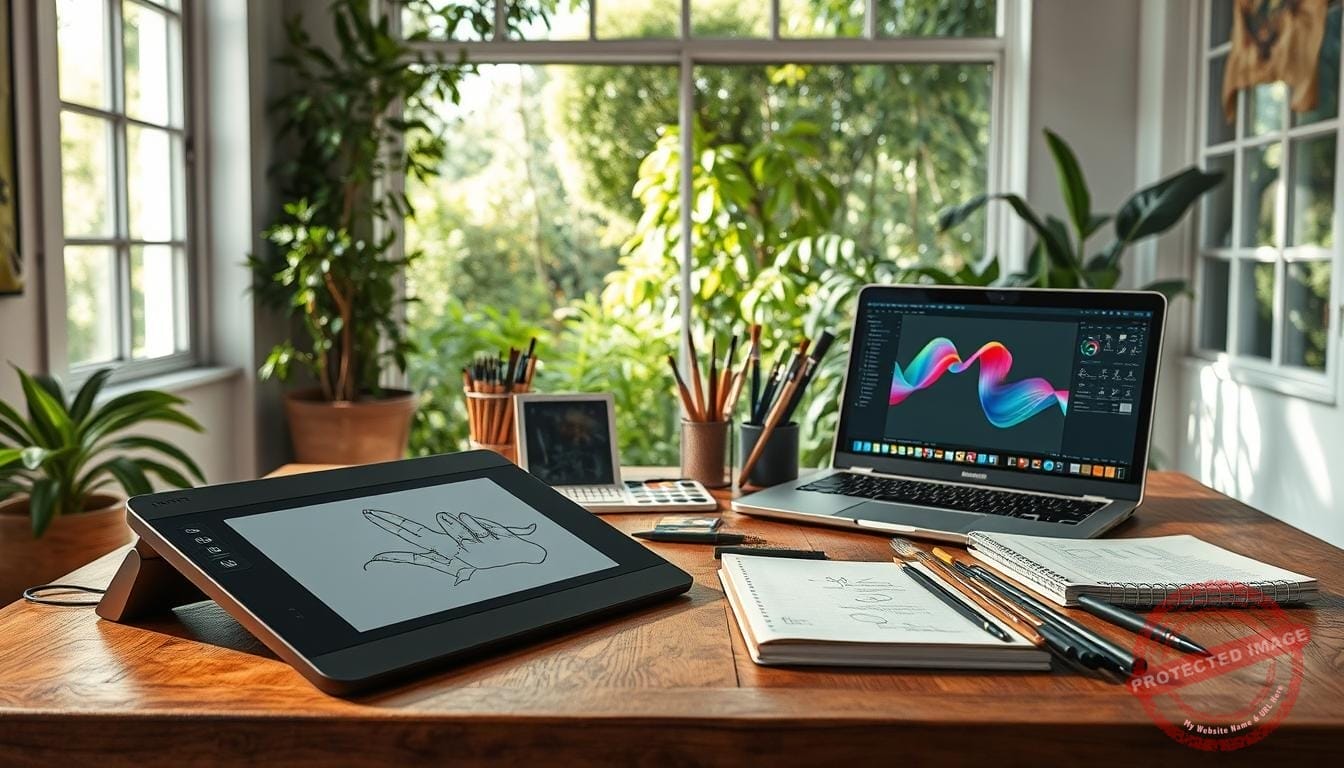
Did you know that over 70% of professional artists now use at least one pen display or tablet as a daily studio tool? That shift changed how I make work and how I teach my craft at Mystic Palette.
I open the gallery doors to my creative world and share the essential digital art tools that shaped my journey. I explain why I picked each device—from the compact Wacom Intuos to the color-rich Cintiq Pro 13—and how they fit into my day.
My setup balances travel, client deadlines, and studio time. I describe how the XP-PEN Deco Pro or a budget Huion display can match a tight budget, while the iPad Pro with Procreate speeds sketch-to-finish work. Visit our Mystic Palette Art Gallery to see these picks in action. For custom requests or inquiries, please contact us so I can tailor recommendations to your goals.
Key Takeaways
- Practical picks: I share devices that truly help my process, not just gadgets.
- Range: Options for beginners, pros, and budget-minded creators.
- Workflow: How tools connect from first sketch to final piece.
- Experience: My years experience guide balanced choices.
- Visit: See and test gear at Mystic Palette; contact me for custom advice.
Why These Tools Matter to My Creative Process Today
My studio setup is not random — every piece of gear earns its place by saving me time and protecting my process.
I avoid interruptions so I can focus on work that matters. Shortcut controllers like TourBox remove repetitive keystrokes, reduce wrist strain, and speed tasks in Photoshop, Illustrator, Lightroom, and Premiere.
A color-accurate monitor lets me soft-proof and trust print results. When colors hold from screen to print, client reviews go faster and revisions drop.
Dependable computers prevent lag and crashes when I push large canvases and many layers. That stability protects deadlines and supports my business in a competitive world.
- Streamlined process: Right gear means more creating, less troubleshooting.
- Saved time: Controllers, palettes, and plugins shave seconds off each action.
- Reliable delivery: Stable machines keep client projects on schedule and maintain quality.
- Long-term growth: My years of experience taught me to build a setup that evolves with me.
Visit our Mystic Palette Art Gallery to see this workflow in action. For custom requests or inquiries, please contact me so I can map the setup to your goals and budget.
Essential Digital Art Tools I Rely On

I choose gear that helps me sketch faster, paint cleaner, and finish with confidence. Below I match specific devices to project needs so you can pick what fits your workflow and budget.
Drawing tablets that fit your budget and goals
Wacom Intuos is my go-to for beginners: 6.0″ x 3.7″ active area, 4 ExpressKeys, and a 4k pressure pen that helps new creators adapt quickly.
XP-PEN Deco Pro gives great value with an 11″ x 6″ area, 8 keys, 8192 pressure and tilt response. It’s a smart pick when you want more space without breaking your budget.
Stylus choices for precision, tilt, and pressure sensitivity
I rely on pens with high pressure levels and tilt for natural line weight and smooth shading. The Wacom Intuos Pro (8.7″ x 5.8″, 8 ExpressKeys, 8k pressure) offers pro-level control when detail matters.
The Apple Pencil on iPad Pro keeps things portable and complete for sketch-to-finish work. For starters, my quick tips help you adapt to non-screen tablets like Intuos or Deco Pro without losing momentum.
- Match size to task: larger active areas for big canvases, compact pads for travel.
- Upgrade smartly: add shortcut keys or change nibs before buying a pricier model.
- Try before you buy: visit our Mystic Palette Art Gallery to test tablets and pens; contact me for tailored tips to pair them with your favorite software.
| Model | Active Area | Pen |
|---|---|---|
| Wacom Intuos | 6.0″ x 3.7″ | 4k pressure |
| XP-PEN Deco Pro | 11″ x 6″ | 8192 pressure, tilt |
| Wacom Intuos Pro / iPad Pro + Pencil | 8.7″ x 5.8″ / Portable | 8k pressure / Apple Pencil |
Tablets I Love: From Starter Pads to Screen Displays
My lineup of tablets covers quick sketches to studio-grade screens that make color decisions easy.
Budget-friendly graphics tablets like the Wacom Intuos and XP-PEN Deco Pro are my go-to for clean line work and smooth pressure transitions. The Intuos (6.0″ x 3.7″, 4 ExpressKeys, 4k pressure) is an affordable, accurate starter pick. The Deco Pro (11″ x 6″, 8 keys, 8192 levels) gives more active area and tilt response without a high price tag.
Professional pen tablets

When I need fine control for edits and tight strokes, I reach for the Wacom Intuos Pro (8.7″ x 5.8″, 8 ExpressKeys, 8k pressure with tilt). Its pressure fidelity helps when detailed work matters.
Display tablets for a natural feel
For on-screen painting and true color checks I favor the Wacom Cintiq Pro 13 and Huion Kamvas GT-191. Both give a natural drawing feel, a color-accurate screen, and responsive pens so I can trust color and tone before printing.
Portable powerhouse
The iPad Pro with Apple Pencil and Procreate is my compact studio. It works perfectly for thumbnails, color studies, and finished pieces while traveling. Procreate is a one-time purchase among the software available that keeps things fast.
- Which works best: choose entry tablets for sketching, pro pads for detail, displays for color-critical painting.
- Try before you buy: Visit our Mystic Palette Art Gallery. For custom requests or inquiries, please contact us.
| Model | Key Specs | Best For |
|---|---|---|
| Wacom Intuos | 6.0″ x 3.7″, 4 ExpressKeys, 4k pressure | Beginners, line work, budget setups |
| XP-PEN Deco Pro | 11″ x 6″, 8 keys, 8192 pressure, tilt | Value, larger active area, sketching |
| Wacom Intuos Pro | 8.7″ x 5.8″, 8 ExpressKeys, 8k pressure, tilt | Professional edits, detailed painting |
| Wacom Cintiq Pro 13 | 13″ Full HD screen, multi-touch | Color work, natural on-screen drawing |
| Huion Kamvas GT-191 | 13″ display, 5080 LPI, 4 ExpressKeys, 8k pen | Cost-effective display tablet |
| iPad Pro + Apple Pencil | 10.5″ Retina, Procreate (one-time) | Portable painting, travel work, studies |
Painting and Design Software That Speeds Up My Workflow
My painting pipeline runs on a mix of heavy hitters and nimble apps that keep ideas moving from sketch to finish. I balance subscription programs with one-time purchases so the learning curve and budget both make sense.
Raster painting and natural media: I use Adobe Photoshop for deep control and complex composites (from $9.99/month). For a free alternative, Krita covers brushes, layers, and masks without cost. When I want a tactile feel I reach for Corel Painter, ArtRage ($79), or PaintStorm Studio ($19).
Mobile and comics: On iPad Pro the one-time fee for Procreate ($9.99) makes it my rapid sketch-to-finish app. For sequential work, Clip Studio Paint ($49.99) handles paneling, inking, and screentones with speed.
Vector and layouts: For branding, UI, and vector illustrations I use Illustrator, Canva, and Figma to build clean assets and social-ready graphics.
3D and VFX: When projects need form or lighting studies I consider Autodesk Maya or 3ds Max, and Nuke for compositing final scenes.


| Program | Type | Price | Best Use |
|---|---|---|---|
| Adobe Photoshop | Raster | $9.99/mo | Deep painting, compositing, print-ready files |
| Procreate | Raster (iPad) | $9.99 one-time | Fast painting, travel work, sketch-to-finish |
| Krita / PaintStorm / ArtRage | Raster / Natural media | Free / $19 / $79 | Starter brushes, natural media textures |
| Illustrator / Figma / Canva | Vector / Layout | Varies | Vector illustrations, UI, social graphics |
- My core stack: Photoshop for depth, Krita to start, and natural-media programs for texture.
- Pick per brief: I match programs to deadlines, budget, and output so nothing slows my work.
- See them in action: Visit our Mystic Palette Art Gallery. For custom requests or inquiries, please contact us.
Color, Power, and Backup: My Hardware Foundation
A tuned monitor and a balanced workstation are the quiet heroes that keep my studio running smoothly.
Color-precise monitor for accurate, print-ready hues
I rely on a calibrated screen so what I paint on screen matches the print. That consistency cuts revision cycles and saves time when clients review proofs.
Dependable computer for large canvases and heavy layers
A strong computer keeps brushes responsive on oversized canvases. I prioritize RAM, a fast scratch disk, and a solid GPU so previews render without lag.
Secure storage strategies: external drives and cloud backups
I use local external drives for offline control and the cloud for continuous backups. This two-tier plan protects years of work and helps teams collaborate across devices.
- What I prioritize: monitor calibration first, then memory and storage upgrades.
- Simple workflow: daily versioning, weekly backups to drive, and automatic cloud sync.
- Why it matters: tuned colors and a stable computer speed my process and protect deadlines.
| Component | Role | Recommendation |
|---|---|---|
| Monitor | Accurate colors for soft-proofing | Calibrated IPS panel, hardware calibrator |
| Computer | Responsive painting and rendering | 16–32GB RAM, SSD scratch disk, mid/high GPU |
| Storage | Backup and collaboration | External HDD/SSD + cloud sync |
Stop by Mystic Palette Art Gallery to see my setup in action. For custom requests or inquiries, please explore hardware choices and contact me to tailor this foundation to your space.
Workflow Boosters and Time-Savers I Often Use
A few focused helpers let me iterate faster and stay present with the work.
Color mastery: I use Coolorus inside Photoshop to nail harmonies fast and keep palettes consistent between studies and finals. Anastasiy panels extend color wheels and brush organizers so I switch moods without hunting menus.
Line stabilizers and pressure tuning
Lazy Nezumi (Windows) and Hej Stylus (Mac) smooth strokes and let me tweak pressure curves. Cleaner inking means fewer fix passes and more creative flow.
Perspective, reference, and shortcuts
Perspective Tools and grid helpers speed scene setup; Handy App and Anatomy 360 help with tricky poses.
PureRef keeps reference boards tidy, so values and edges stay visible. A TourBox controller reduces repetitive keystrokes, increasing speed and comfort during long sessions.
- I often use these programs and recommend vendors’ walkthroughs—check guide pages for setup tips.
- These helpers give artists and digital artists a practical edge: faster iteration, fewer errors, and more time for art.
Visit our Mystic Palette Art Gallery. For custom requests or inquiries, please contact us.
Brushes, Learning, and Inspiration to Elevate Your Art
Curated brush packs and focused reading changed my approach to color and form.
I return to versatile brush packs for natural media texture and matte painting workflows. Premium sets (~$59) give depth, while free packs by Charlie Bowater, Aaron Griffin, and Darek Zabrocki add quick variety.
Organizing brushes makes switching between edge control, texture, and scatter feel effortless. I group by purpose: inking, texture, soft blends, and scatter. That saves time and keeps mood consistent across projects.
Books and references that shaped my eye
James Gurney’s Color and Light and Scott Robertson’s How to Draw changed how I see form and hue. Digital Painting Techniques and The Digital Matte Painting Handbook taught studio workflows I still use.
Courses to speed skill and business growth
Programs like Digital Painting Academy offer hundreds of videos and monthly feedback. Bootcamps help you build a pro-ready portfolio in weeks and cover business basics for becoming one full-time artist.
- I pair brush sets with programs by importing Photoshop brushes into other apps for a unified kit.
- If you love comics, studio paint presets make inking crisp and expressive.
- Keep an inspiration board and revisit it yearly to measure growth and refine taste.
| Resource | Type | Why I Use It |
|---|---|---|
| Premium natural-media packs | Brush sets (~$59) | Realistic texture for matte painting and painterly studies |
| Free artist packs (Bowater, Griffin, Zabrocki) | Brush sets (free) | Quick variety and signature strokes without cost |
| Digital Painting Academy / Bootcamps | Courses | Structured feedback, portfolio focus, business tips |
| Color and Light; How to Draw | Books | Fundamentals of color, form, and composition |
Visit our Mystic Palette Art Gallery. For custom requests or inquiries, please contact us.
Desk Essentials for Comfort and Speed
Small changes at my desk make a big difference in how long I can create and how well I feel while doing it.
Durable keyboard and mouse for navigation and shortcuts
I rely on a sturdy keyboard and a precise mouse as part of my daily setup. They remain indispensable for selections, layer navigation, and quick text edits even when I draw on a tablet.
I tune mouse DPI, map macro keys, and pick keycaps that let shortcuts feel natural. These small tweaks cut time and increase speed when a deadline looms.
Ergonomic chair for healthy posture during long sessions
An adjustable chair isn’t a luxury—it protects posture and creative energy. I set tilt, seat height, and depth so my wrists stay neutral and shoulders relax during long work sessions.
Even minor comfort gains compound into steadier decision-making across a full day of artwork and client work. I also pause hourly for quick stretches to reset my eyes and back.
- I explain the way I position my desk, armrests, and tablet to keep wrists neutral.
- Macro keys, mouse DPI, and a durable keyboard make shortcuts intuitive under pressure.
- Visit our Mystic Palette Art Gallery to see my desk ergonomics in person; contact me for a checklist tailored to your space.
| Item | Why I use it | Quick tip |
|---|---|---|
| Sturdy keyboard | Fast shortcuts and reliable typing | Custom keycaps for common actions |
| Responsive mouse | Precise selections and layer work | Adjust DPI for fine strokes |
| Ergonomic chair | Long-term posture and energy | Set lumbar support and seat height |
Conclusion
, Think of this as a compact roadmap: match a drawing tablet or display to your budget, pick software that fits your pace, and lock in a dependable computer and backups so painting stays responsive.
I recommend Wacom and XP-PEN for tablets, the Cintiq Pro or Huion displays for on-screen work, and an iPad Pro with Procreate for travel. Pair those with Photoshop, Krita, or Clip Studio Paint and add helpers like TourBox, Coolorus, Lazy Nezumi, PureRef, and Anastasiy panels to speed setup and refine technique.
Protect your time with a calibrated screen and simple backup routines. For personalized advice, visit our Mystic Palette Art Gallery. For custom requests or inquiries, please contact us — I’m here to help plan your next years of creative growth.
FAQ
What gear do I highlight at Mystic Palette Art Gallery?
I showcase my go-to drawing tablets, display pads, and a range of software I use to create paintings and illustrations. My picks include Wacom Intuos and Intuos Pro, XP-PEN Deco Pro, Wacom Cintiq Pro, Huion Kamvas, and the iPad Pro paired with Apple Pencil and Procreate. I also use Adobe Photoshop, Clip Studio Paint, and Illustrator for different phases of a project.
Why do these choices matter to my creative process today?
These devices and programs shape how fast I work, the control I feel when painting, and the final image quality. Right hardware lets me handle big canvases without lag. The right software helps me test color, work with layers, and push techniques like matte painting or vector layouts efficiently.
Which drawing tablet should I buy if I’m on a budget?
I often recommend the Wacom Intuos or XP-PEN Deco Pro for beginners on a budget. They give reliable pressure sensitivity and solid drivers at a low price. They won’t replace a display tablet, but they let you learn shape, line work, and brush control without a large investment.
When should I invest in a pen display like a Cintiq or Kamvas?
I chose a pen display once I needed direct on-screen drawing for precision and color work. If you regularly paint complex compositions, do matte painting, or need exact pixel placement, a Cintiq Pro or Huion Kamvas delivers a more natural feel and speeds up my workflow.
Is the iPad Pro a real alternative for professional work?
Yes. I use iPad Pro with Apple Pencil and Procreate for quick studies, on-the-go sketches, and even finished pieces. It’s portable, responsive, and increasingly accepted in pro pipelines. For heavy layered files or advanced compositing, I still move files into Photoshop or Clip Studio when needed.
What software speeds up my painting and layout work?
I rely on Adobe Photoshop for complex raster work, Krita for free painting, Corel Painter for organic brushes, and Clip Studio Paint for comics. For vector, UI, and layouts I use Adobe Illustrator, Figma, and Canva. These programs shape how I tackle different jobs and client briefs.
Do I ever use 3D or VFX tools in my process?
I do for special projects. Autodesk Maya, 3ds Max, and Nuke help me block scenes, create assets, or composite elements into paintings. They save time when I need correct perspective, lighting references, or dynamic camera moves.
What hardware should support my creative work?
I keep a color-accurate monitor for print-ready hues, a dependable computer that handles many layers and large files, and a backup strategy with external drives and cloud storage. These three things prevent lost work and keep color consistency across prints and screens.
Which workflow boosters make the biggest difference for me?
I use Coolorus for fast color selection, Lazy Nezumi for smoother lines on Windows (and Hej Stylus on Mac), perspective grid helpers, PureRef for managing references, and shortcut controllers like TourBox. Those tools shave hours from repetitive tasks and keep my focus on craft.
How do I choose brushes and learn new techniques?
I mix versatile brush packs for natural media and matte painting with curated free and premium sets from professional artists. Books like Color and Light and Digital Painting Techniques helped me early on, and I still take courses from reputable academies to level up both skill and the business side of being an artist.
What small desk items improved my comfort and speed?
I invested in an ergonomic chair, a durable keyboard and mouse, and a clean workspace setup. Good posture and reliable input devices reduce fatigue and keep my hands ready for long painting sessions.
How should a beginner balance budget and quality when building a studio?
I advise starting with a solid tablet like an Intuos or Deco Pro, pairing it with free or low-cost software such as Krita or Clip Studio, and upgrading a monitor or computer as projects demand. Save for a display tablet only when you need direct on-screen control and higher color fidelity.
Can these tools support freelance or studio work professionally?
Absolutely. With reliable hardware, industry-standard software, and good file management, I’ve seen freelancers and studios produce client-ready work. Learning workflow practices—naming layers, using non-destructive edits, and backing up—is just as important as the gear itself.


