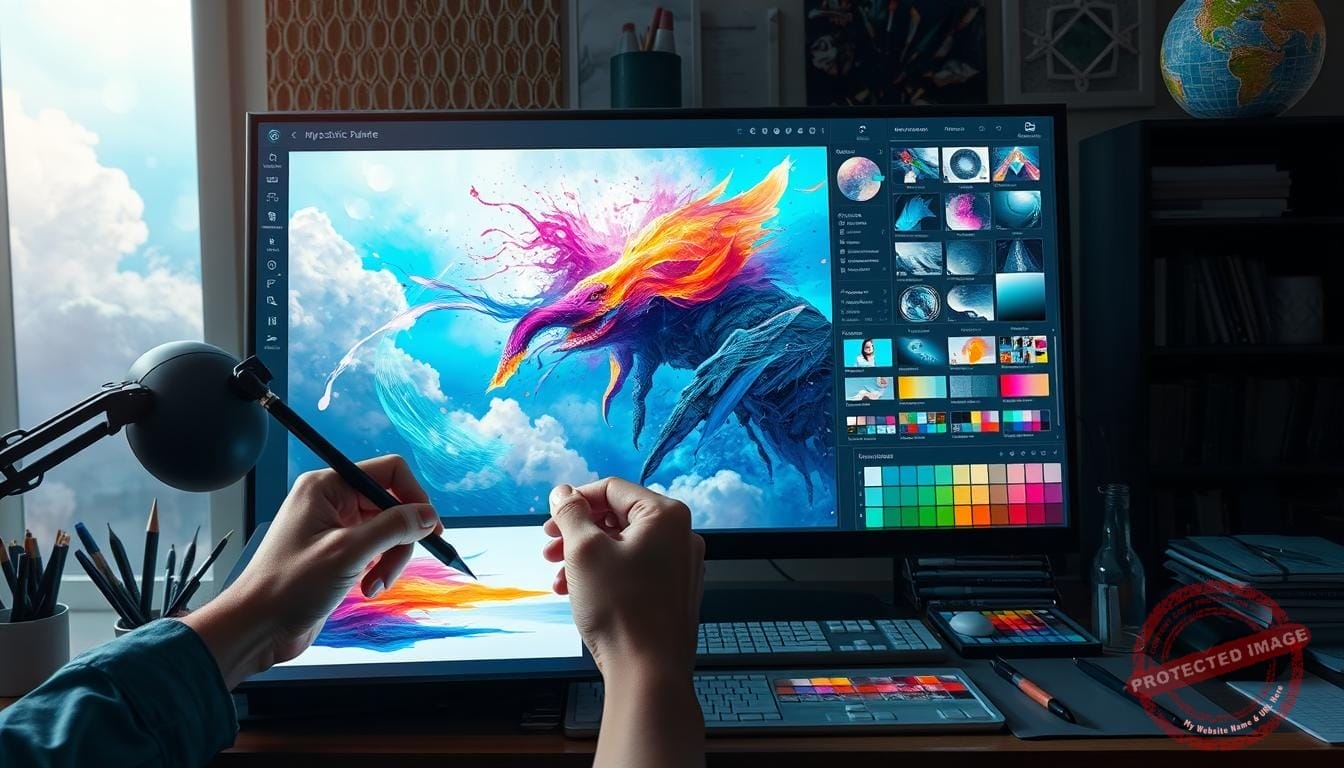
I invite you to join me at Mystic Palette as I open up my studio routine. I take a raw idea and move it through sketch, flats, light and shadow, blending, and final details so a piece wakes up with intent.
My aim is simple: give you a clear map so choices about colors, light, and texture feel confident, not chaotic. I use a few trusted tools and one or two software setups to keep decisions focused.
Along the way I blend traditional drawing skills with modern habits: separate layers for line, flats on Multiply, simple cel shading early, then soft blends and selective texture. These steps let a work gain life with each pass.
Visit our Mystic Palette Art Gallery to see examples, and if you like what you see, contact me for custom requests or commissions.
Key Takeaways
- Rendering moves art from rough sketch to a polished artwork in distinct stages.
- Plan light early to make each brushstroke count.
- Use a few dependable tools and software to reduce decision fatigue.
- Combine drawing fluency with layer control for better textures and details.
- See examples at Mystic Palette and contact me for custom work.
What Rendering Means in My Digital Art Workflow
Rendering is where a loose sketch finds weight, color, and mood so the idea steps forward as a clear image.
I define this arc as the part of the work where detail, texture, light, and shadow come together to bring an image to life. In my practice the path moves from sketch to flats, then to shading, blending, and final surface details.
Across media the goals stay similar: make form readable, set values, and create depth. Traditional tools—pencils, charcoal, oil, or watercolor—use hatching and brushwork to shape volume. In three‑dimensional work, software calculates lighting models; in two‑dimensional work, I apply similar ideas by hand.
How I Treat Each Stage
- Clarify forms: I lock silhouette and structure early so the piece reads at small sizes.
- Establish values: Shadows and highlights guide color choices and focal points.
- Add texture: Subtle marks suggest materials and bring tactile life to objects.

You’ll see how edges, shading, and lighting create believable form even when my style is stylized. If you want to see these ideas in action, please visit the Mystic Palette Art Gallery or contact me for custom requests.
Setting the Stage: Tools, Canvas, and Lighting Plans
Before a single stroke, I decide which tools and canvas will make the artwork sing. My setup choices shape how colors sit, how texture reads, and how I keep the file nimble as I work.
I pick software that handles layers and blending reliably — Photoshop, Procreate, or Corel Painter are my go-to apps. I keep a small brush set for clean edges and soft transitions. Base colors sit under line art with an upper layer on Multiply to lock values early.
Canvas size and color management matter. I set resolution based on the final use: print needs higher DPI and careful profiles; screen work may use sRGB for consistent color across devices. File size, layer naming, and lightweight brushes save time and prevent slowdowns.
Planning Light, Values, and Palette
I sketch value blocks that separate light from shadow. That map guides later blending and texture passes. I note materials — matte cloth, skin, chrome — so reflections and edge hardness behave properly.
For deeper study, I use examples of dramatic lighting techniques to refine glow, highlights, and bounce light ideas.
- Choose software with robust layers and predictable blending.
- Set canvas size and color profile for print or screen.
- Plan light direction, value separation, and a restrained palette first.
| Goal | Screen | Quick Tips | |
|---|---|---|---|
| Resolution | 300 DPI, CMYK proof | 72–150 DPI, sRGB | Start large; downscale for export |
| Color Profile | CMYK or Adobe RGB | sRGB | Soft-proof before finalizing |
| Brushs | Textured bristle + soft blend | Lightweight, responsive brushes | Limit presets to speed work |
| Layer Strategy | Flats, multiply values, detail layers | Same, but fewer high-res effects | Label layers by stage |


If you want to see file setups or how I adapt for different mediums, visit our Mystic Palette Art Gallery. For custom requests or inquiries, please contact us.
My digital painting rendering process, step by step
I walk each piece from a loose sketch to a focused image by breaking the work into clear, repeatable stages. This keeps decisions simple and the artwork readable at every scale.
Sketch to composition
Block shapes first. I lock perspective and silhouette early so the composition reads at a glance.
I check negative space and make sure the main forms guide the eye. A small, readable sketch saves hours later.
Base colors on separate layers
I lay flats on separate layers and keep the palette tight. Line art sits above on Multiply when needed.
This lets me nudge colors and keep file organization clear with groups and masks.
Light and shadow passes
I start with a cel-shading pass to split light and shadow. Then I add midtones and reflected light.

Clear value separation makes later blending faster and preserves depth for the final piece.
Blending for believable form
I choose hard edges where planes meet and soft blends on rounded surfaces.
Brush, mixer, or subtle smudge tools help keep structure while smoothing transitions.
Textures and details
I add texture near the focal area and simplify elsewhere. Surface marks enhance realism without stealing attention.
Selective effects like rim light or tiny noise finish the work and tie layers together.
| Stage | Common Tools | Key Goal | Quick Tip |
|---|---|---|---|
| Sketch | Pencil brush, perspective guides | Silhouette & composition | Keep lines loose; test thumbnails |
| Flats | Hard round, layer groups | Palette & clean color blocks | Use named layers and masks |
| Light/Shade | Multiply layer, cel brush | Value separation | Block shadows before softening |
| Details | Textured brushes, dodge/burn | Surface interest & focus | Place details where eyes should linger |
Want to see these stages in finished work? Visit our Mystic Palette Art Gallery. For custom requests or inquiries, please contact us.
Refinement Techniques That Elevate Depth, Texture, and Light
I focus on tiny contrasts and edge choices to guide the viewer’s eye through the work. These small moves shape depth and keep the piece lively without overworking it.
Edge control made practical
Keep hard edges at object boundaries and cast shadows to anchor forms. Soften edges on rounded surfaces to suggest volume.
Use selective sharpening to lead attention and avoid smoothing every stroke. That restraint preserves energy and clarity.
Material cues and textures
Match texture to material: matte shows broad diffusion, plastics need balanced specular highlights, and chrome reflects clear environment cues.
I add fabric weave, brushed metal grain, or weathered paint only where the details support the main subject.
Lighting models in practice
Ambient occlusion adds contact shadow near joins and creases. Subtle bounce light warms areas that would otherwise look cut out.
These techniques improve the overall look and help the artwork read as a coherent scene.
Bridging 2D and 3D mindsets
I borrow traditional drawing methods—hatching, layered strokes, and pencils—to build depth. Then I translate those cues into selective blending and layer work.
- I use masks, restrained brushes, and tiny noise overlays to keep values intact.
- I revisit layers to tweak color temperature and micro-contrast.
- I check the image at thumbnail and full sizes to confirm clarity.
| Refinement Area | Technique | Tool | Key Result |
|---|---|---|---|
| Edges | Hard at silhouettes, soft on curves | Controlled brush, sharpen | Clear form definition |
| Materials | Diffuse vs. specular cues | Layered highlights, reflection maps | Believable surfaces |
| Lighting | AO + bounce light | Multiply, soft light layers | Unified depth and warmth |
| Texture | Selective placement, subtle noise | Textured brushes, overlays | Storytelling detail without clutter |
Want to study examples? Visit our Mystic Palette Art Gallery. For custom requests or inquiries, please contact us.
Rendering Faster Without Sacrificing Quality
Speed and care can coexist; I aim to finish work faster without losing the small choices that make it sing.
Non-destructive workflows are the backbone of my approach. I separate flats, shadows, and detail into named layers and use masks and adjustment layers to try bold lighting or color moves without harming earlier work.
Layer strategies and non-destructive adjustments for flexible iteration
I rely on groups, clipping masks, and smart filters so experiments stay reversible. That means I can test new techniques or lighting ideas and return to a saved version if needed.
Hardware considerations and when to leverage a cloud render farm
For heavy files or when a fast lighting pass matters, a cloud render farm speeds render time and frees my workstation so I can keep composing.
| Setup | Speed | Best for |
|---|---|---|
| Local workstation (Photoshop/Blender) | Moderate | Most painting and small tests |
| Cloud render farm | Fast | High-res scenes, batch lighting, complex render jobs |
| Hybrid | Balanced | Preview locally, final render in cloud |
Time-saving habits: reusable brushes, references, and custom presets
I keep a compact toolset: reusable brushes, curated references, and exportable presets. These save time across each artwork stage and keep visual choices consistent.
- I document effective settings so the next piece starts from a strong base.
- I batch similar tasks and lock decisions early to protect time and quality.
- I preview lighting with quick passes and offload heavy renders when needed.
Curious how this looks in finished work? Visit our Mystic Palette Art Gallery. For custom requests or inquiries, please contact us.
Conclusion
, The last steps are about clarity: tighten the focal area and let other parts breathe. I aim to make each artwork read at a glance and reward close viewing.
I’ve shared how edge choices, value grouping, and selective detail shape depth and color so the final look feels intentional. These techniques help an artist move one idea to a finished piece with clear shadow and texture cues.
For examples that show these ideas across styles, please visit the Mystic Palette Art Gallery or check this concise rendering guide. If you want to turn your idea into an unforgettable work, contact me and we’ll shape a direction together.
FAQ
What does rendering mean in my art workflow?
I use rendering to describe the stages that take an idea from a rough sketch to a finished image. It covers layering, shading, texture work, and color decisions I make to create believable form, light, and depth. I also borrow techniques from traditional media like oil and pencil to inform how I handle strokes and edges.
How do I choose software and brushes that support clean layers and blending?
I pick tools based on responsiveness and brush fidelity—Procreate, Adobe Photoshop, and Clip Studio Paint are my go-tos. I test brushes for opacity, texture, and how they mix with layer blend modes. I favor brushes that offer both hard edges and soft transitions so I can switch between precise detail and smooth blends without changing tools often.
What canvas size and resolution do I use for print versus screen?
For prints I work at 300 DPI and choose dimensions that match the final print size. For screens I target 72–150 DPI and consider common display sizes. I always set a large working canvas early so I can scale down later, and I use color profiles like sRGB for web and Adobe RGB for print to keep colors accurate.
How do I plan light direction, values, and palette before I start?
I block in a simple value study and two or three thumbnail sketches to lock composition and light. I pick a limited palette to keep harmony, then create swatches and a value map so every color decision supports the main light source and mood.
What’s my step-by-step approach from sketch to final piece?
I begin with a loose sketch to set pose and silhouette, then block in flat colors on separate layers. Next I establish primary light and shadow with a cel-shading pass, then refine midtones and reflected light. I finish with texture, edge control, and final color grading to unify the image.
How do I establish base colors without losing flexibility?
I use flats on separate labeled layers and keep selections intact for quick edits. Layer groups and masks let me adjust color relationships non-destructively, so I can tweak hues or values without repainting large areas.
How do I handle light and shadow passes for convincing form?
I start with a strong cel-shade to define planes, then add midtone transitions and subtle reflected light. I use multiply and overlay layers to deepen shadows and enhance highlights, always checking contrast to preserve readable silhouettes.
When should I use hard versus soft transitions for blending?
I use hard edges where a surface changes abruptly or to draw focus, and soft blends for gradual form or atmospheric depth. I switch between a stiff brush for defined contours and a soft brush or mixer for smooth gradients, balancing both to keep the piece lively.
How do I add textures and details without overwhelming the focal point?
I add texture on separate layers at lower opacity, and I mask areas outside the focal zone. I keep high-frequency detail near the subject and reduce it in backgrounds, using subtle grain, fabric weaves, or brush noises to imply material instead of over-rendering.
What edge control techniques do I use to direct attention?
I sharpen edges around the main subject and soften them as they recede. Strategic contrast and slight bloom on highlights help guide the eye. I also use selective detailing—more refinement where I want viewers to linger, less where I want them to move on.
How do I render different materials like matte, plastic, or chrome?
I study reference and identify each material’s key cues: specular highlights, edge sharpness, and reflected color. Matte surfaces get muted highlights and diffuse shading; plastic benefits from mid-level speculars; chrome needs strong highlights and reflected environment colors to read convincingly.
Which lighting models do I apply in practice?
I combine ambient occlusion for contact shadows, bounce light for color shifts, and rim lighting to separate forms. I rarely rely on a single model; instead, I layer these effects to create believable, cohesive illumination that reads from different angles.
How do I bridge 2D and 3D thinking to improve my work?
I sketch forms as simple volumes—spheres, cylinders, boxes—and rotate them mentally to understand how light hits. I sometimes use 3D references or rough block-ins in Blender for complex poses, then translate that structural knowledge into my strokes.
How can I speed up work without losing quality?
I build reusable assets: custom brushes, material stamps, and preset layer stacks. I use non-destructive adjustments, smart objects, and masks to iterate quickly. Good reference libraries and well-organized files save hours on each piece.
When should I upgrade hardware or use cloud rendering?
I upgrade when my workflow stalls—slow brushes, lagging transforms, or frequent crashes. For very large files or batch renders, I consider cloud services or a dedicated GPU workstation to cut render time and keep my flow steady.
What time-saving habits do I recommend for consistent output?
I keep a library of proven brushes and color palettes, build templates for common formats, and maintain a folder of curated references. Short daily studies and preset routines help me stay fast while still improving quality.
How do I control revisions while keeping the image cohesive?
I work in stages and share checkpoints: composition, flats, value pass, and final polish. This lets me get feedback early and avoid major rework. I also use adjustment layers to test changes globally before committing.
Which additional keywords are useful for someone learning my approach?
Look into layers, textures, shading, blending, lighting, shadows, color management, brushes, masks, presets, edge control, midtones, highlights, ambient occlusion, mixer brush, smudge tool, references, composition, silhouettes, values, and hardware.