Did you know a workable starter kit can cost as little as $100 or climb past $2,800? That range shows how one choice can change your setup, your time, and your creative path.
I created this guide to help you get started with confidence. I’ll walk you through the key things artists ask me most, from devices and software to simple techniques that speed up learning.
You don’t need a new computer to begin; aim for at least 8 GB RAM and consider a larger external monitor to cut fatigue during long sessions. Many paid apps offer free trials, so you can test tools before you buy.
Visit our Mystic Palette Art Gallery for real examples and inspiration. If you want tailored feedback or have custom requests, contact me any time and I’ll help map your next steps.
Key Takeaways
- Starter costs vary: expect $100 to $2,800+ depending on gear and upgrades.
- I’ll show where to invest first and what to upgrade later as skills grow.
- Test software with free trials to save money up front.
- 8 GB RAM and a 20″+ monitor make long sessions easier.
- Visit Mystic Palette Art Gallery for inspiration and real examples.
- Contact me for custom advice and feedback tailored to your goals.
Why I’m Excited You’re Here: A Warm Welcome to Digital Art
Thank you for joining me; I remember how starting felt a little intimidating. The moment I discovered I could undo mistakes instantly, I relaxed and enjoyed making again.
If you come from traditional art, bring every habit that works. This medium adds layers, brushes, and color tools that speed progress without replacing your instincts.
There are practical wins, too. You can experiment without waste, share files with clients faster, and avoid the mess of paints and solvents. That low-cost entry makes it easy to try new ideas.
I wrote this guide to be a friendly map. I’ll offer gentle tips to help beginners start drawing sooner and dodge common detours that slow artists down.
- You’ll learn how short sessions can still move a piece forward.
- I’ll point to inspiring examples in our Mystic Palette Art Gallery.
- If anything is unclear, please contact us and I’ll answer your questions personally.

My welcome is simple: you’re in the right place, and your creative path matters.
What Digital Art Is and Why It’s Beginner‑Friendly Today
I see this medium as a move in tools, not a loss of craft. It includes painting, illustration, graphic design, photo manipulation, pixel work, concept pieces, and 2D animation made or refined on computers, tablets, and dedicated apps.
Many paid programs offer free trials, so you can test options hands‑on before you buy. Affordable or free apps such as Krita, GIMP, Inkscape, Medibang, and FireAlpaca make entry easy.
From traditional art to pixels: how the medium shifts, not the creativity
I think of this practice as the same creative heart expressed through pixels instead of paper. Your sense of composition, gesture, and storytelling carries right over.
Benefits for beginners: undo, low mess, and accessible tools
You’ll enjoy beginner‑friendly wins like unlimited undo and non‑destructive editing. That lowers stress and speeds learning.
Clean, portable setups let you practice in small spaces. You can try photo edits, bold illustrations, or playful pixel pieces without big costs.
| What it covers | Beginner benefit | Suggested first step |
|---|---|---|
| Painting & illustration | Undo and layers | Install one app and explore brushes |
| Photo manipulation & design | Non‑destructive edits | Try free trials to compare software |
| Pixel art & 2D animation | Low cost tools and tight workflows | Sample a free app like Krita or Medibang |
I recommend installing one app first and learning core tools before chasing advanced features. The biggest reasons people succeed now are friendly interfaces, clear tutorials, and defaults that let you focus on making rather than troubleshooting.
Want a quick primer on how this all fits together? Check this short guide on what this practice is and how to make it: what is digital art and how to make.
Choosing Your Setup: Computer, Tablet, or Smartphone?

I like to match tools to how you work, not the other way around. Start by thinking about space, budget, and how much you move while creating. That simple choice guides the rest of your setup.
Drawing on a computer
If you already own a computer, you can draw on it today. I recommend at least 8 GB RAM to keep apps responsive. Non‑touch laptops pair well with a pen tablet to give smoother, more natural lines without swapping machines.
Tablet options
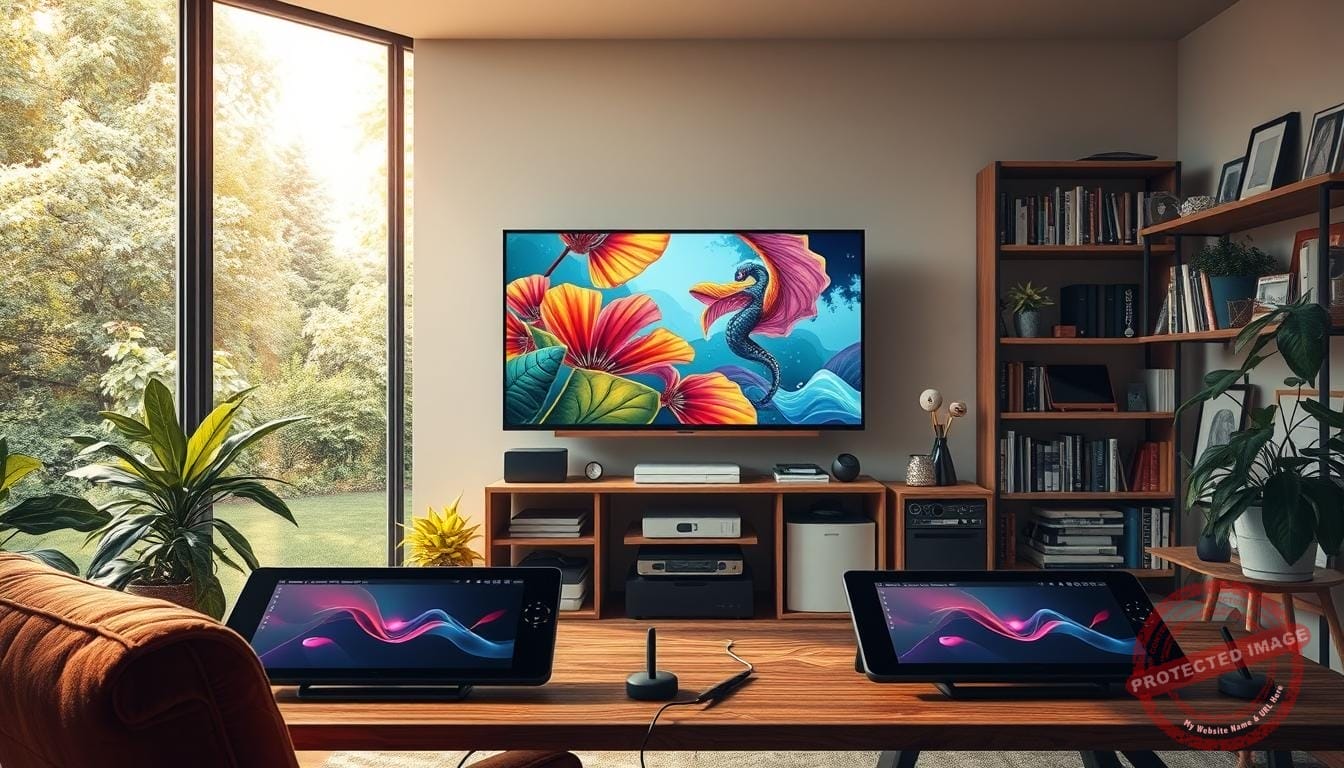
Tablets are great when mobility matters. An iPad with Apple Pencil or a Galaxy Tab with S Pen is portable and reliable. Pen displays bring the screen and pen together if you prefer direct strokes.
Smartphone sketching and stylus notes
Some phones support pressure sensitivity, like Galaxy devices with S Pen or phones that work with Wacom styluses. I test stylus support so line weight and taper feel expressive during quick studies.
Bigger display, less strain
When I plan longer sessions, I add a larger display (20″+). A wider view reduces strain and helps with large canvases, reference images, and palettes.
“Start simple, then add what you need as your comfort and workflow grow.”
| Setup | Why I choose it | Good first step |
|---|---|---|
| Computer + pen tablet | Cost‑effective; smooth lines | Install one app and connect a basic tablet |
| iPad / Galaxy Tab | Highly portable; direct pen input | Try Procreate or CSP trial on tablet |
| Phone + stylus | Ultra‑portable; quick sketches | Check pressure support before buying |
| Laptop + external display | Less fatigue; larger workspace | Add a 20″+ monitor when sessions grow |
- If you have a computer, pair it with a pen tablet to save money and get smoother strokes.
- Tablets let you sketch anywhere; choose based on apps and pen feel.
- Look at pressure levels and latency when specs matter — devices like the Galaxy Book5 Pro 360 offer 4,096 levels and a 120 Hz OLED display for very fluid strokes.
Essential Gear for Drawing Digitally: Pen Tablets, Displays, and Stylus Tips
What matters most is how the pen responds to your hand, not the flashiest specs on the box. I want gear that feels like an extension of my wrist and invites me back to the canvas.
Pen tablet vs. pen display: I often recommend a pen tablet when you’re starting. It’s cost‑effective, durable, and pairs with the computer you already own. The Wacom Intuos is a classic starter choice, while the XP‑Pen Deco MW adds wireless freedom and 8,192 pressure levels for confident strokes.
What specs actually matter

I check pressure, tilt, and latency first because those specs shape line weight, shading, and hatching. Low latency and good tilt support help marks feel natural. Extra pressure levels can smooth curves, but sensible ergonomics and stable drivers matter more in daily use.
Pen displays like the XP‑Pen Artist 12 3rd give direct on‑screen feedback and a paper‑like etched glass feel. They can be pricier, but the real‑time view of your strokes is a big help if you prefer drawing on the screen.
- Choose a drawing tablet that fits your desk and posture.
- Look for programmable buttons and a reliable driver — they save clicks and keep you focused.
- Balance pressure levels and tilt with budget; upgrades can wait until you use the setup daily.
If you want a short buying checklist, see my linked artist buying guide for practical tips and comparisons.
Software to Get You Creating: Free, Paid, and Tablet Apps
Picking an app that fits your workflow matters more than chasing every feature. I want you to feel at home with the interface so you keep making, not pausing to learn menus.
Big names to try: Adobe Photoshop remains an industry standard and offers a 7‑day trial. Clip Studio Paint is excellent for comics, inking, and panel workflows and also has a free trial. Corel PaintShop Pro, Affinity Designer/Photo, and Autodesk SketchBook are solid alternatives.
Free options I love: Krita, GIMP, Inkscape, Medibang, and FireAlpaca let you paint, ink, and vectorize without monthly fees. Try a few trials so the brushes and tools respond the way you expect.
Tablet favorites: Procreate is a one‑time $9.99 on iPad and records time‑lapse. Clip Studio on iPad and Galaxy works well if you want full illustration features on the go.
- I recommend testing several software options with free trials to see which interface matches your brain.
- Match tools to the art you make—character illustration, textured paint looks, or crisp design work.
- Budget a bit: test, then commit to the app that keeps you finishing pieces happily.
| Type | Best use | Cost |
|---|---|---|
| Adobe Photoshop | All‑around editing & painting | Subscription; 7‑day trial |
| Clip Studio Paint | Comics, inking, panels | One‑time or subscription; free trial |
| Procreate | iPad painting & quick exports | One‑time $9.99 |
| Krita / GIMP / Medibang | Free painting, inking, vector work | Free |
Digital Art Basics for Beginners
Start with a simple stack of layers and you’ll avoid costly redraws later. That habit keeps edits loose and the composition flexible while you explore ideas.
These core skills transfer across most apps and help your pieces read clearly from sketch to finish.

Layers and layer modes: the backbone of non‑destructive workflows
I set up separate layer groups for sketch, line, flats, shadows, and effects. Using layer modes like Multiply, Overlay, and Screen saves time and stops me from repainting large areas.
Brushes and settings: texture, flow, and control
I tune brushes for size jitter, opacity, and texture so edges feel intentional. A small, reliable brush set keeps my strokes consistent and expressive while I work.
Light, value, and color: building believable depth
I block in value first, then refine color temperature and light direction. Good values make forms read clearly before I worry about final color choices.
Form and perspective: structure that makes drawings read
Simple shape breakdowns and perspective grids keep proportions honest. That approach makes characters and environments feel solid and readable.
- I stack layers for sketch, line, flats, shadows, and effects so edits stay clean.
- Layer modes help deepen value, add glow, and balance color without repainting.
- I tune brushes for flow and texture so simple strokes feel expressive.
- Study real light, use perspective guides, and keep a small brush set to develop a consistent illustration style.
Tip: Reference is a friend—watch how light falls on simple objects and translate that into your work.
My Simple Beginner Process: From Sketch to Final Illustration
I start each piece by blocking a soft background wash to set scale and mood before any line work. This quick step makes later choices feel clearer and keeps the page from looking empty.
Lay in background and a rough sketch
I place a single background layer with a muted tone, then add a loose sketch on a new layer. I sketch broadly to find shapes and pose, then reduce sketch opacity so it reads as a guide.
Clean linework and brush choice
With the sketch dimmed, I pick a steady inking brush and do clean linework on its own layer. This keeps the energy of the original drawing while giving crisp edges for later steps.
Flats, shadows, highlights, and finish
I paint flat color beneath my lines, keeping each area isolated. Shadows go on a Multiply layer and I add highlights on Overlay. I blend a bit where needed, nudge hues, then sign and export.
- Save versions often so you can experiment and roll back.
- Merging is fine when file size grows; keep a layered master copy.
- This process makes completing illustrations a confident, repeatable part of my practice.
Workflow Tips to Save Time and Build Confidence
I shave hours off simple tasks by teaching my tools to do routine work.
Map shortcuts and pen buttons so the most‑used tools are one tap away. I set keystrokes and pen clicks to open palettes, switch brushes, or toggle guides. That keeps my flow steady and reduces interruptions.
Custom shortcuts, actions, and plug‑ins I set up
I use actions and macros to automate exports, flatten test comps, and prepare files for web. Running a script can save minutes per file and hours across a week.
Lightweight plugins add targeted features—better color pickers, perspective grids, or texture generators—without bloating software. I test one plugin at a time so my app stays fast and stable.
Organizing files, versions, and brushes like a pro
I keep a few purposeful brush sets and back them up with palettes and textures. That way, switching a computer or reinstalling software takes minutes, not hours.
- I name files with dates and short descriptors to track versions fast.
- I keep a layered master plus export copies to avoid accidental merges.
- I use a pre‑delivery checklist to catch color profiles, stray layers, or missed edge cleanups.
| Practice | Benefit | Quick action |
|---|---|---|
| Custom shortcuts | Faster tool access | Map keys + pen buttons |
| Actions & macros | Automate repetitive steps | Create export and prep scripts |
| Brush & palette backups | Easy computer switches | Store sets in cloud or archive |
| Versioned file names | Clear revision history | Use YYYYMMDD_shortdesc |
Tip: Small workflow changes compound. These things free more time so you can make stronger choices in each session.
For more structured time‑saving tips to save time, I recommend trying one plugin and one macro this week. You’ll notice the difference quickly.
Practice, Inspiration, and Getting Connected at Mystic Palette
A small daily rhythm helps me keep momentum—brief sketches, value studies, or color swatches each day. These tiny habits make it easy to get started and to start drawing without pressure.
Daily habits and respectful use of references
I keep sessions short and focused. Ten minutes with a sketch from life or a thumbnail on paper can spark bigger ideas.
References are tools. I study anatomy and fabric, credit sources, and use licensed images when needed to respect other artists.
Visit our Mystic Palette Art Gallery and see what’s possible
Our gallery shows a lot of styles, characters, and paintings to inspire your next illustration. Browse to gather a bit of direction and new color ideas.
Custom requests and connecting with the community
If you want feedback or a commissioned illustration, please contact us. I enjoy tailoring work to a client’s story and helping other artists grow.
- I rotate brushes periodically to keep line quality fresh without adding complexity.
- Working from paper thumbnails often unlocks unexpected ideas I refine in digital drawing sessions.
- Organize files and assets so projects stay tidy and easy to share for critique.
“You’re an artist the moment you choose to show up—one small habit at a time.”
Conclusion
Choose one tablet or pen tablet, one app you enjoy, and give them time to become familiar. Start on the computer you own (aim for 8 GB RAM) and add a 20″+ display later if sessions get long.
Keep tools simple: a reliable stylus, a small brush set, and a sensible workflow will speed progress more than high specs. Test software with free trials like Adobe Photoshop or Clip Studio Paint, then commit to practice.
Your traditional instincts still guide every sketch and illustration. Visit our Mystic Palette Art Gallery for ideas, and if you’d like help choosing a computer, tablet, or pen tablet — or commissioning characters or paintings — please contact us.
FAQ
What gear do I need to start creating on a tablet or computer?
I recommend a pen-enabled tablet or pen display paired with a reliable computer or tablet. An iPad with Apple Pencil, a Samsung Galaxy Tab with S Pen, or an entry-level Wacom pen tablet covers most needs. Look for good pressure sensitivity, low latency, and comfortable size. Add an external monitor later if you want more screen real estate.
Which software should I learn first: Adobe Photoshop or something free?
I suggest trying free apps like Krita or Medibang to understand layers, brushes, and color. Then test Adobe Photoshop or Clip Studio Paint via a free trial to see if their tools match your workflow. Procreate is great on iPad if you prefer a tablet-first approach.
How do layers and blend modes help my workflow?
Layers let me build images non-destructively: sketch, linework, flats, shadows, and highlights each on separate layers. Blend modes speed up shading and lighting—Multiply for shadows, Overlay for punchy lights—so I can iterate without losing earlier steps.
What brush settings should a newcomer focus on first?
I start with brush size, opacity/flow, and hardness. Then I explore texture and pen pressure response. Small tweaks to smoothing and stabilization help steady lines, while custom brushes add variety as my style develops.
How can I get smooth lines when drawing digitally?
I use pen stabilization, draw at higher resolution and scale down later, and practice long, confident strokes instead of short jittery ones. A display tablet or pen display feels more natural than a non-display tablet for line control.
Do I need to learn perspective and anatomy right away?
No—start with simple forms and build confidence. Basic perspective and proportion lessons pay off quickly, and I add anatomy studies as I focus on characters. Short, focused practice sessions work better than rare long ones.
How should I organize files and versions to avoid losing work?
I keep a master layered file (PSD or CSP), save incremental versions (v1, v2), and export flattened PNGs or JPGs for sharing. Back up to cloud storage like Google Drive or Dropbox and use consistent folder names to find things fast.
What are quick ways to improve color and lighting in a piece?
I block in values first, then pick a limited palette. Use adjustment layers—Hue/Saturation, Curves, Color Balance—and layer blend modes to adjust mood. Adding a single warm or cool rim light can unify a scene.
How can I practice without feeling overwhelmed by tools and options?
I simplify: choose one brush, one canvas size, and a single daily prompt. Limit tools and focus on composition, values, and form. Gradually add brushes and features as each becomes familiar.
What’s the best way to export work for web or print?
For web, I export sRGB PNG or JPG at 72–150 DPI with the longest edge sized appropriately (e.g., 2000 px). For print, export CMYK or a high-resolution RGB TIFF/PSD at 300 DPI and check bleed and trim settings with your printer.
How important is stylus pressure and tilt for my drawings?
Pressure sensitivity matters a lot for line variation and shading; tilt helps mimic natural brushes. I prioritize tablets with at least 2048 pressure levels and tilt support if I plan to mimic traditional brushes frequently.
Can I create professional illustrations with budget gear?
Absolutely. Many professionals started on affordable pen tablets and free or mid-tier software. Skill, consistent practice, and smart workflows matter more than the most expensive gear.
How do I protect against repetitive strain and eye fatigue?
I set ergonomic posture, use a screen at eye level, take regular breaks (the 20-20-20 rule), and alternate between tablet and mouse tasks. Light adjustments and drawing at comfortable speeds reduce strain.
Where can I find inspiration and respectful reference material?
I gather references from photo libraries, life drawing, and museum resources. I respect creators by studying rather than copying—then I transform references into original work with my own composition and ideas.
What are quick ways to build a portfolio or gallery presence?
I post consistent work, show process shots (sketch to final), and curate a small gallery that highlights your strengths. Participate in themed challenges and tag platforms like Instagram, ArtStation, or the Mystic Palette community to gain visibility.